

Sheets
Sheets are the fastest way to get your own data into Icelake and work with it. Drop in a CSV — a few rows or several gigabytes — and it becomes a spreadsheet you can scroll, edit and question in plain language. Every save is a new version, so nothing is ever overwritten.
Under the hood each Sheet is a ClickHouse table on European S3-backed storage, so the same data is instantly available to SQL, Visualizations and AI MasterMind.
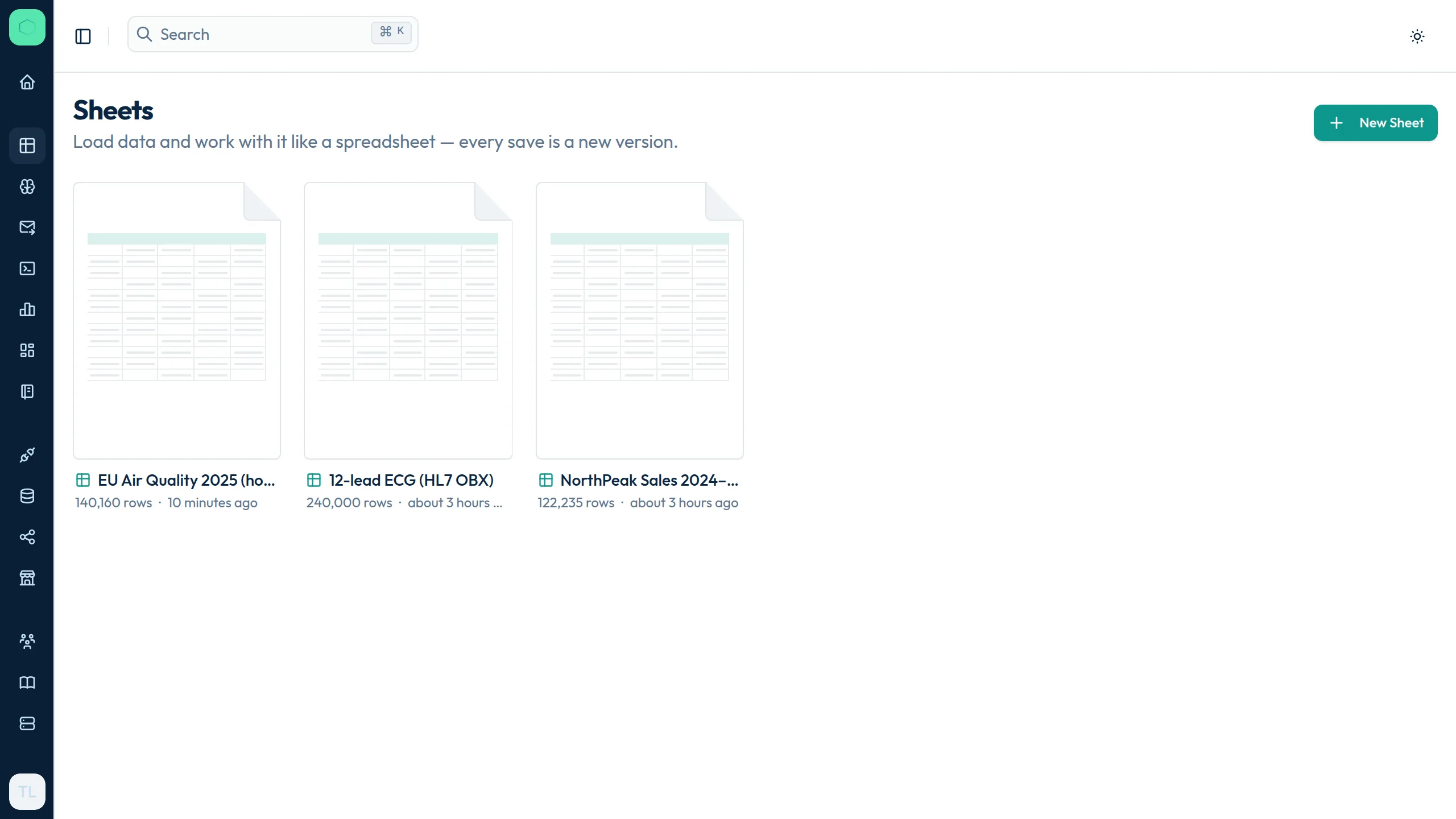
Create a Sheet
Section titled “Create a Sheet”Open Insights → Sheets and click New Sheet. Sheets are shown like documents in a file browser; click a title in the editor to rename it.
Load data
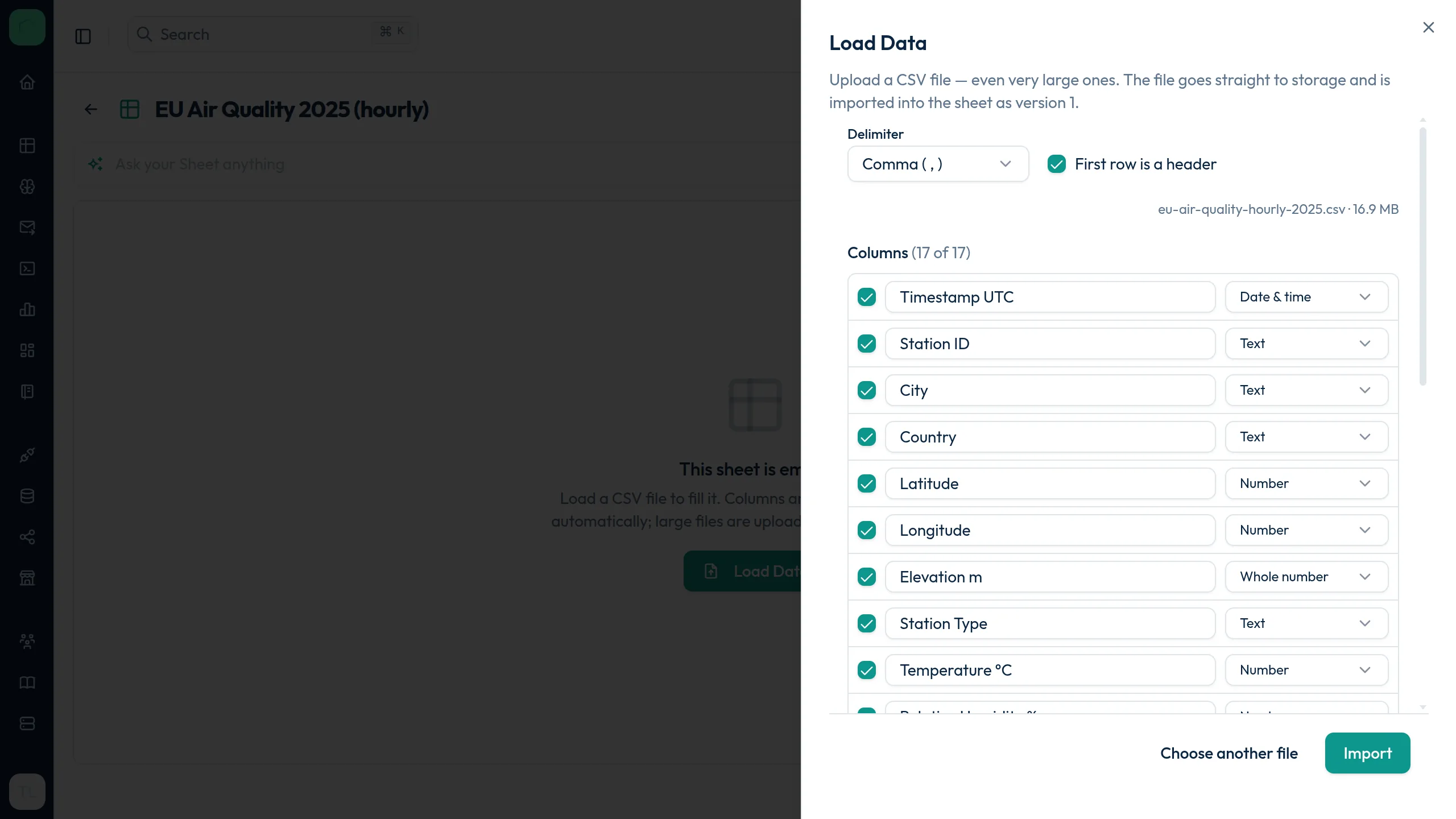
Section titled “Load data”Click Load Data in an empty sheet and drop a CSV file (.csv, .tsv or .txt).
- Upload — the file goes from your browser straight to object storage in parallel parts, with a progress bar. Large files are fine (up to 10 GB per file); you can cancel at any time.
- Review — Icelake reads the uploaded file and detects the delimiter (comma, semicolon, tab, pipe), whether the first row is a header, and a type for every column: text, whole number, number, true/false, date, or date & time. Rename columns, change their types, or untick the ones you don’t need. A preview shows the first rows.
- Import — the file is loaded into the sheet as version 1, with live progress. A 122,000-row CSV imports in about a second.
Values that don’t match a column’s type are imported as empty cells instead of failing the import, so a stray n/a on row 900,000 doesn’t cost you the whole file. Decimal commas (1,5), German booleans (ja/nein) and common date formats (31.12.2024) are recognised.
Tip: Load Data works on empty sheets. To load another file, create a new sheet.
Scroll, edit and save
Section titled “Scroll, edit and save”The grid streams rows in as you scroll — jump to row 100,000 of a million-row sheet and it loads just that part.
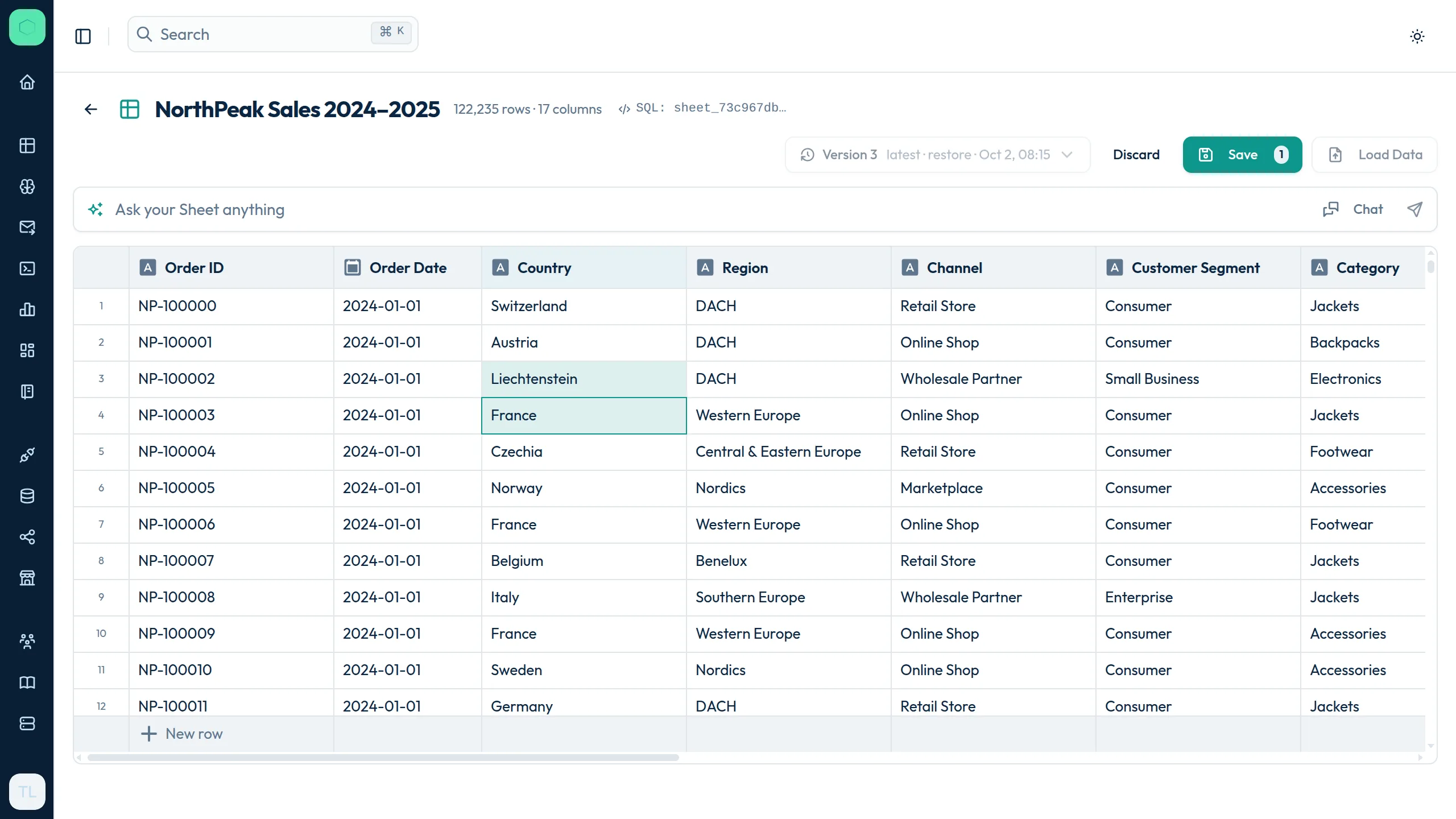
- Edit a cell — double-click it, or select it and start typing. Paste works too.
- Add rows — click New row at the bottom of the grid.
- Delete rows — select rows via the row numbers and press Delete (or Delete rows). Deleted rows stay visible, tinted red, until you save — select them again for Undo delete.
Changed cells are highlighted, and the Save button shows how many changes are pending. Discard throws them away. Leaving the page with unsaved changes asks for confirmation.
Versions and restore
Section titled “Versions and restore”Every Save creates a new version — only the changed rows are stored, so versions are cheap. Use the version selector in the header to open any earlier version (read-only) and compare. Restore this version brings the sheet back to exactly that state — as a new version, so the history is never rewritten.
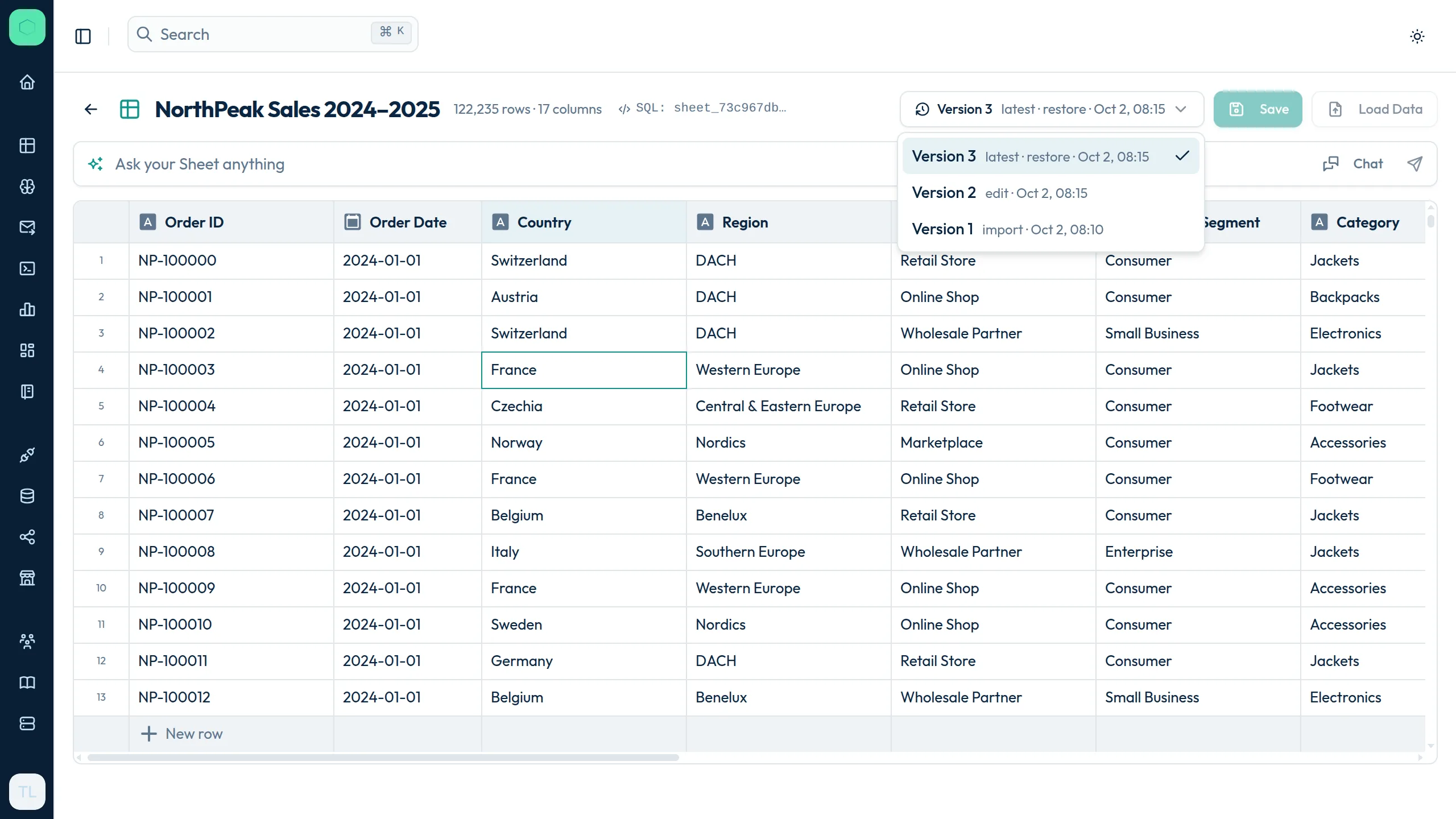
If someone else saved the sheet while you were editing, your save is rejected with a clear message instead of silently overwriting their work — reload to get the latest version.
Ask your Sheet anything
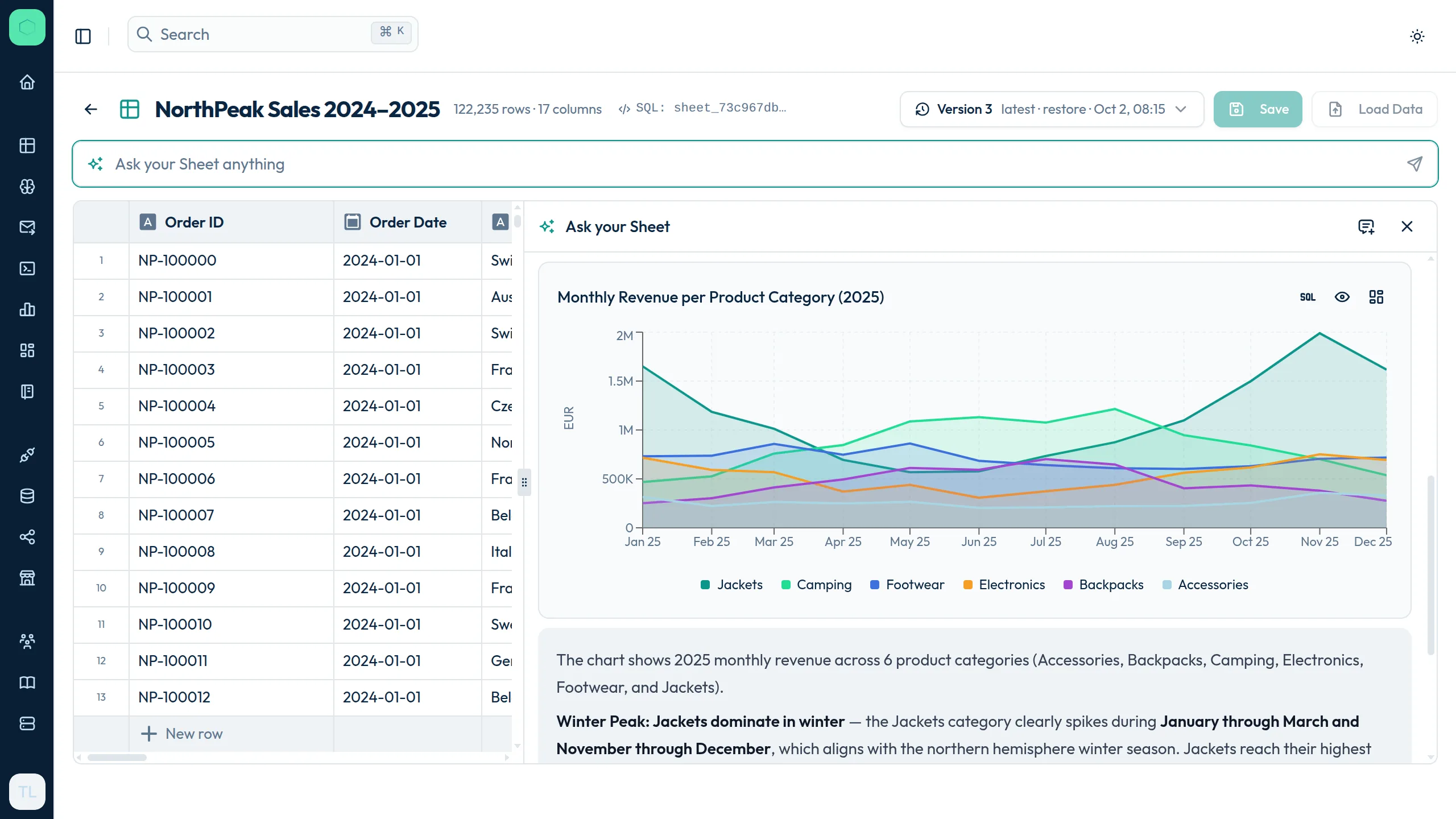
Section titled “Ask your Sheet anything”Type a question into Ask your Sheet anything above the grid. A chat panel opens to the right of the sheet — drag the divider to make it wider or narrower.
The answers come from Icelake’s AI MasterMind, scoped to this sheet: it writes SQL against your data and replies with text, tables and charts. Good first questions:
- “Which region grew fastest from 2024 to 2025?”
- “Show the monthly revenue by category for 2025 as a chart.”
- “Plot lead II of patient PAT-0002 for the first 4 seconds.”
Each sheet keeps its own chat history; reopen the last conversation with Chat next to the prompt. The assistant can read your sheet but never changes it — edits are always yours.
Query a Sheet with SQL
Section titled “Query a Sheet with SQL”Every sheet is also a table you can use anywhere Icelake runs SQL — the SQL Workbench, Visualizations, Dashboards and AI MasterMind. Its table name is shown in the sheet header (SQL: sheet_…, click to copy). Column names are the ones you see in the grid, plus _row, the sheet’s stable row number:
SELECT `Region`, toYear(`Order Date`) AS year, round(sum(`Revenue EUR`)) AS revenueFROM sheet_73c967db189c4743b17bc3fc1d54f9faGROUP BY `Region`, yearORDER BY `Region`, yearQueries always see the latest saved version. Use backticks for column names with spaces or special characters.
Try it with sample data
Section titled “Try it with sample data”Want to see Sheets in action without your own data? Download one of these synthetic samples (all companies, people and measurements are fictional), unzip it, and load the CSV into a new sheet:
| Sample | Download | Rows | Shows |
|---|---|---|---|
| Outdoor-gear sales 2024–2025 (business intelligence) | ZIP, 2.7 MB | 122,000 | Regions, channels, seasonality, Black Friday, growth |
| EU air quality, hourly 2025 (science) | ZIP, 2.3 MB | 140,000 | PM2.5, NO₂, O₃, weather at 16 stations |
| 12-lead ECG from HL7 v2 OBX rows (medical) | ZIP, 2.9 MB | 240,000 | Four rhythms at 500 Hz, one OBX segment per row |
Each ZIP contains the CSV, a README with suggested questions, and the script that generated it. The Quickstart walks through the first steps with them.
Limits
Section titled “Limits”- Up to 10 GB per uploaded file and 1,000 columns per sheet.
- Load Data fills empty sheets; appending to a sheet that already has data is coming later.
- Column names can be changed in the review step; changing a column’s type after import is coming later.